
記事一覧へ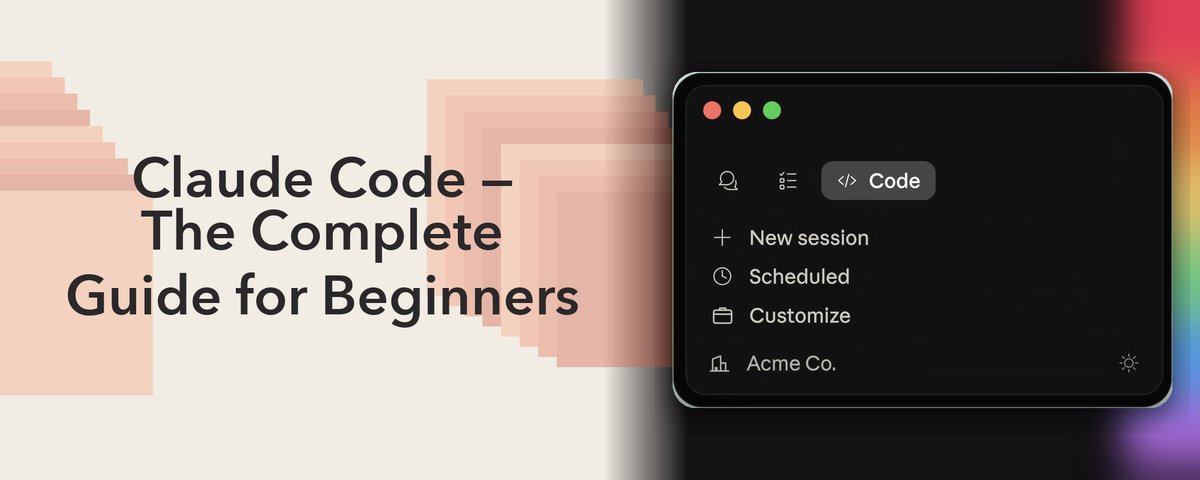
## Claude Code デスクトップUI 再設計——初心者のための完全ガイド
Claude Code のデスクトップUIは一から作り直された。何が変わったか、そして初心者としてどう設定するかを全て解説する。
---
## #1 — 実際に何が変わったか
このアップデート以前、Claude Code はターミナルだった。1セッション。1タスク。完了するまでスクロールを眺めるだけ。
それは過去のものになった。
新しいデスクトップアプリはフルの並列ワークスペースだ——複数のセッションが同時に動き、それぞれがサイドバーに見え、それぞれが独立して動作する。もはや Claude を待つ必要はない。あなたが指示を出す側になる。
Anthropicは自ら述べている:このアプリは「エージェントコーディングが今どう感じられるかのために構築された」と。
---
## #2 — 誰が使えるか + 入手方法
Pro・Max・Team・Enterprise・APIアクセスで利用可能。無料プランはまだ対応していない。
設定方法:
- claude.com/download にアクセス
- Mac または Windows 向けをダウンロード
- Anthropicアカウントでサインイン
- アプリを開く → 即座にサイドバーが表示される
設定ファイルなし。ターミナルのセットアップなし。開くだけ。
---
## #3 — サイドバー
すべてのアクティブなセッション、すべての最近のセッション——左側の統一パネルに表示。
ステータス・プロジェクト・環境でフィルタリング。プロジェクト単位でグループ化。プルリクエストがクローズすると、セッションは自動アーカイブされる。手動のクリーンアップは不要。
これが並列作業を実際に管理可能にする機能だ。
---
## #4 — 複数セッションの同時実行
これが今回の再設計全体が構築された核心のワークフローだ:
- セッションを開く → Claude にタスクを渡す(例:コンポーネントのリファクタリング)
- 実行中に → 「新しいセッション」をクリック
- セッション2を別のタスクに向ける(別モジュールのテストを書く)
- 両方を同じプロジェクト下にグループ化
- 自由にクリックして切り替え
- Claude はタスクAを継続しながら、あなたはタスクBをレビューする
もはや Claude がコードを書いている間、何もできずに待つ必要はない。2つも3つも4つものことを同時に走らせ、結果が出次第レビューする。
---
## #5 — ドラッグ&ドロップワークスペース
すべてのペイン——ターミナル・プレビュー・diff ビューア・チャット——は完全に移動可能だ。
初心者向けの実用的なレイアウト:チャットを左(全高)・ターミナルを右上・diff ビューアを右下
これで会話・アウトプット・コードの変更をすべて同時に表示できる。レイアウトはセッションごとに保存される——一度設定すれば完了。
---
## #6 — 統合ターミナル
以前:テストを実行する → システムターミナルに Alt+Tab → ディレクトリに移動 → コマンドを実行 → Claude に戻る → 何が起きたか説明する。
今:ターミナルはアプリに内蔵されている。Claude もアウトプットを見る。あなたもアウトプットを見る。すべてが1か所に収まる。
排除するコンテキストスイッチひとつひとつが、実際に完了するワークフローになる。
---
## #7 — ファイルエディタ
Claude Code 内で直接ファイルを開いて編集できる。タスクの途中で素早い変更をするために VS Code に飛ぶ必要はもうない。
そしてClaudeはあなたの編集をリアルタイムで見る——あなたが変更内容を説明しなくても、Claude がそのコンテキストを持っているということだ。
---
## #8 — diff ビューア(再設計)
大きな diff は以前は重くてナビゲートが苦痛だった。今は大きな変更セットを高速に、すべてアプリ内で処理できる。
並列セッションと組み合わせよう:Claude がセッション1でリファクタリングを完了 → diff をレビュー → セッション2はまだテストを書いている。レビューがもはや他のすべてをブロックしない。
---
## #9 — プレビューペイン
HTMLファイル・PDF・ローカルアプリサーバーをClaude Code 内で直接レンダリングできる。
フロントエンドを構築しているなら——レンダリングされたアウトプットがそれを生成するコードのすぐ隣に表示される。別のターミナルで dev サーバーを起動する必要はない。何度も更新するブラウザタブも不要。
---
## #10 — サイドチャット(多くの人が見落とす機能)
Macでは `Cmd+;` / Windows・Linuxでは `Ctrl+;`
サイドチャットはメインの会話から分岐し——完全なコンテキストを引き込みながら——メインのタスクを汚染することなく使える。
ユースケース:Claude がフィーチャーを構築している途中。アクティブなセッションを脱線させずにアプローチについて質問したい。サイドチャット。質問する。答えを得る。メインセッションは動き続ける。
このショートカットは暗記せよ。常に使うことになる。
---
## #11 — ビューモード
Claudeのプロセスをどの程度見るかをコントロールする3つのモード:
- **verbose** → すべてのツール呼び出し・すべてのファイル読み込み・すべての判断ポイント
- **normal** → 主要なアクションとアウトプット、ノイズなし
- **summary** → 結果のみ
初心者向けヒント:normalで始めよう。何かが壊れて何が起きたかトレースする必要があるときはverboseに切り替える。複数のセッションを管理しているときはsummaryを使う。
4セッションをverboseで動かすのは混沌だ。
---
## #12 — SSHサポート(macOSで新登場)
デスクトップアプリから直接、リモートサーバー上でClaude Codeセッションを実行できる。以前はLinuxのみだった。
セッションはあなたのラップトップではなくリモートマシンのリソース上で動く。大規模なコードベース・重いビルド——これはMacBookから何ができるかを変える。
これは記録に留めておこう。プロジェクトが大きくなったときに必要になる。
---
## #13 — 使用量ダッシュボード
リアルタイムのコンテキストウィンドウ消費量とセッション使用量がアプリに内蔵されている。
すべてのセッションにはコンテキストウィンドウの上限がある。タスクの途中でそこに達するとアウトプット品質が下がるか、セッションが完全に切れてしまう。ダッシュボードはそうなる前に現在地を示す。
上限に近づいたら → タスクをまとめる → フレッシュなセッションを開始する。
---
## #14 — 覚えておく価値のあるショートカット
- `Cmd+/` または `Ctrl+/` → ショートカット一覧全体
- `Cmd+;` または `Ctrl+;` → サイドチャット(これを見逃すな)
- 新しいセッションのショートカット → どこからでも並列セッションを開始
- セッション切り替え → マウスを使わずセッション間をジャンプ
全部を暗記しようとしないこと。まずサイドチャットのショートカットとセッションスイッチャーだけ覚えよう。
---
## #15 — 大きな絵
Claude Code はもはや、モデルが優秀だから我慢して使うターミナルツールではない。
フルの開発環境だ。モデルを作った同じ会社がモデルの周りに構築したIDE——つまりモデル能力とアプリ設計の統合は、Cursor・Windsurf・Copilotがマッチできないほど密だ。
それらは他社のモデルのラッパーだ。これはモデルメーカーが自社エージェントの周りにインターフェースを構築したものだ。
並列セッション・ドラッグ&ドロップワークスペース・内蔵ターミナル・リアルタイムファイル編集——これはAnthropicがIDE層に旗を立てていることだ。
1つのエージェントが1つのタスクを処理するのを待つ時代は、すでに古い方法に感じられ始めている。
Claude CodeIDE開発環境claude-setup
Claude Code デスクトップアプリ完全ガイド:新UIで変わった15の機能を初心者向けに解説
7911
原文を表示 / Show original
m0h
@exploraX_
claude code's redesigned desktop UI - the complete guide for beginners
6
13
79
17K
claude code's desktop UI was rebuilt from the ground up, here's everything that changed and how to set it up as a beginner.
#1 — what actually changed
before this update, claude code was a terminal. one session. one task. you watching it scroll until it finished.
that's gone.
the new desktop app is a full parallel workspace — multiple sessions running at once, each visible in a sidebar, each working independently. you're not waiting on claude anymore. you're directing it.
anthropic said it themselves: the app is "built for how agentic coding actually feels now."
0:32
#2 — who can use it + how to get it
available on pro, max, team, enterprise, and api access. free tier — not yet.
setup:
— go to claude.com/download
— download for mac or windows
— sign in with your anthropic account
— open the app → you're in the sidebar immediately
no config files. no terminal setup. just open it.
#3 — the sidebar
every active session, every recent session — one unified panel on the left.
filter by status, project, or environment. group by project. when a pull request closes, the session auto-archives. no manual cleanup.
this is the feature that makes parallel work actually manageable.
#4 — running multiple sessions
this is the core workflow the whole redesign was built for:
— open a session → give claude a task (say, refactoring a component)
— while it runs → click "new session"
— point session 2 at a different task (writing tests for another module)
— group both under the same project
— click between them freely
— claude keeps working on task A while you review task B
you're no longer idle while claude writes code. you're running 2, 3, 4 things at once and reviewing results as they land.
#5 — drag-and-drop workspace
every pane — terminal, preview, diff viewer, chat — is fully movable.
practical beginner layout: chat left (full height) · terminal top-right · diff viewer bottom-right
gives you the conversation, the output, and the code changes all visible at once. layout saves per session — set it once, done.
#6 — integrated terminal
before: run a test → alt-tab to system terminal → navigate to directory → run command → switch back to claude → explain what happened.
now: terminal is built into the app. claude sees the output. you see the output. everything stays in one place.
every context switch you eliminate is a workflow that actually gets finished.
#7 — file editor
open and edit files directly inside claude code. no more jumping to VS Code mid-task to make a quick change.
and claude sees your edits in real time — meaning it has context on what you changed without you explaining it.
#8 — diff viewer (rebuilt)
large diffs used to be slow and painful to navigate. now it handles big changesets fast, all in-app.
combine this with parallel sessions: claude finishes a refactor in session one → you review the diff → session two is still writing tests. review no longer blocks everything else.
#9 — preview pane
render HTML files, PDFs, and local app servers directly inside claude code.
if you're building frontend — rendered output sits right next to the code generating it. no dev server in a separate terminal. no browser tab you keep refreshing.
#10 — side chat (the feature most will miss)
cmd+; on mac · ctrl+; on windows/linux
a side chat branches off your main conversation — pulls in the full context — without contaminating the main task.
use case: claude is halfway through building a feature. you want to ask a question about the approach without derailing the active session. side chat. ask. get the answer. main session keeps running.
memorize this shortcut. you'll use it constantly.
#11 — view modes
three modes controlling how much of claude's process you see:
— verbose → every tool call, every file read, every decision point — normal → key actions and outputs, no noise — summary → results only
beginner tip: start on normal. switch to verbose when something breaks and you need to trace what went wrong. use summary when you're juggling multiple sessions.
four sessions on verbose is chaos.
#12 — SSH support (now on macOS)
run claude code sessions on a remote server directly from the desktop app. was linux-only before.
session runs on the remote machine's resources — not your laptop's. large codebases, heavy builds — this changes what's possible from a macbook.
file this one away. you'll want it when projects get bigger.
#13 — usage dashboard
real-time context window consumption and session usage, built into the app.
every session has a context window limit. hit it mid-task and output quality drops — or the session cuts off entirely. the dashboard shows where you stand before that happens.
approaching the limit → wrap up the task → start a fresh session.
#14 — shortcuts worth knowing
cmd+/ or ctrl+/ → full shortcut list cmd+; or ctrl+; → side chat (don't sleep on this) new session shortcut → parallel session from anywhere session switching → jump between sessions without touching the mouse
don't try to memorize all of them. just start with the side chat shortcut and the session switcher.
#15 — the bigger picture
claude code is no longer a terminal tool you tolerate because the model is good.
it's a full development environment. an IDE built by the same company that builds the model — which means the integration between model capability and app design is tighter than anything cursor, windsurf, or copilot can match.
those are wrappers around someone else's model. this is the model maker building the interface around its own agent.
parallel sessions, drag-and-drop workspaces, built-in terminal, real-time file editing — this is anthropic planting a flag at the IDE layer.
the era of watching one agent work on one task at a time is already starting to feel like the old way.
follow for more AI content like this!!!
Want to publish your own Article?
Upgrade to Premium
7:21 PM · Apr 20, 2026
·
17.6K
Views
6
13
79
83
Read 6 replies