
記事一覧へ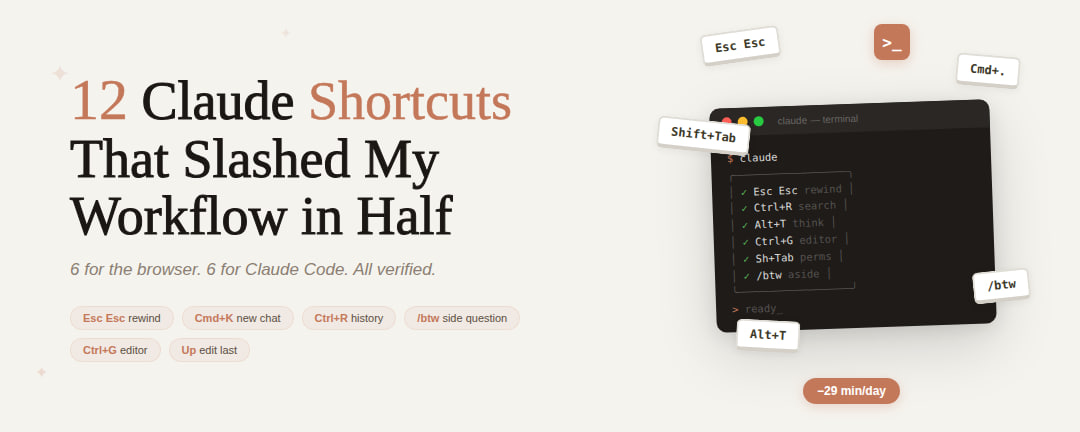
先週初めてClaudeを開いた人でも、ローンチ以来毎日使い続けている人でも、まだ使っていない機能が必ずあります。
私は1週間かけて、すべてのクリック、すべてのメニュー操作、3段落前に止めるべきだったのに待ち続けてしまった時間を記録しました。
1日51分。考えることではなく、クリック、スクロール、待機、そして送り直す必要のなかったメッセージの再送に費やしていました。
その後、Claudeのすべてのショートカットを洗い出しました。ブラウザとターミナルの両方を。それぞれをテストし、時間の差を計測し、実際に作業スタイルを変えた12個を選びました。
ブラウザ用が6つ、Claude Code用が6つ。すべて検証済み。すべて本物。完全なリストをご紹介します。
ブラウザのショートカットはCMD+?(Mac)またはCtrl+?(Windows)を押すことで確認できます。
— ブラウザ(claude.ai) —
**1. Cmd+K / Ctrl+K — 新しいチャットを開始**
リストの中で最も基本的なショートカットです。
角にある「新しいチャットを開始」ボタンを探す代わりに、1つのキーコンビネーションを押すとクリーンな入力フィールドに移動します。コンテキストがクリアされ、フレッシュなスタートです。
1日に何度新しい会話を始めるかを数えるまでは些細なことに聞こえます。私は15〜20回始めます。毎回4秒節約できれば、このショートカット1つだけで1日1分以上の節約になります。
> 以前:角にマウス移動 → 「新しいチャット」クリック → 待機 → 4秒
> 以後:Cmd+K → すでに入力中 → 0.3秒
本当の価値は秒数ではありません。関係のない質問を過負荷な会話に詰め込む代わりに、すべき時に実際に新しいチャットを始めるようになることです。
**2. ↑ キー — 最後のメッセージを編集**
これは後から知ると悔しいものです。
プロンプトを送ります。Claudeが誤解します。「いや、そういう意味じゃなくて...」と補足を入力して送ります。するとClaudeは会話の全履歴プラス補足を再読します。トークンが無駄になり、コンテキストが汚染されます。
↑キーで最後のメッセージが編集できます。まず入力フィールドが空であることを確認してください。Claudeは修正されたバージョンから再生成します。悪いやりとりが積み重なるのではなく、置き換えられます。
> 補足メッセージ:元メッセージ + 補足 + 全再読 = トークン2倍
> 編集:修正済みメッセージ + クリーンな再生成 = トークン1倍
メッセージ20番目でのトークン計算:
> 補足:〜10,500トークン(すべてを再読 + 新メッセージ)
> 編集:〜500トークン(再生成のみ)
21倍の差。1メッセージで。これだけで月次トークン費用を変えられます。
**3. Cmd+. / Ctrl+. — 生成を停止**
Claudeが大量のレスポンスを書き始めます。2段落で間違った方向に向かっているのが見えます。またはハルシネーションを起こしています。求めていないコードを書いています。
Cmd+.で即座に止まります。Claudeはすでに書いた部分を保持します。そこから方向転換します。
> 悪いレスポンスが終わるのを待つ:15〜30秒間違った出力を眺める
> 2段落目でCmd+.:0秒の無駄
問題を確認した後にClaudeが生成し続けるすべてのトークンは、支払うことになるトークンです。長い間違ったレスポンスでは500〜1,000トークンが無駄になります。私は1日10〜15回これを使います。
**4. Cmd+/ ; Ctrl+/ — サイドバーの切り替え**
サイドバーは280pxを消費します。ラップトップではビューポートの20%が今見ていない古い会話のリストに使われています。
Cmd+/で非表示になります。もう一度押すと戻ります。
> サイドバーありの1440px画面:コンテンツに1160px
> なし:コンテンツに1440px
> 作業スペース24%増加
デフォルトで閉じておきましょう。チャットを切り替えるときだけ一瞬開きます。MacのDockを隠すのと同じ発想で、常に表示する必要はありません。
**5. Cmd+Shift+L / Ctrl+Shift+L — ダーク/ライトテーマの切り替え**
夜11時に白い画面が目に刺さります。または朝、ダークモードが日光で洗い出されて見えにくい。
Cmd+Shift+Lでダークとライトモードが瞬時に切り替わります。プロフィール設定を探すより速い。
> 以前:プロフィールクリック → 設定 → 外観 → 切り替え → 6秒
> 以後:Cmd+Shift+L → 完了 → 0.2秒
些細なことでしょうか?そうかもしれません。でも1日に少なくとも2回(朝と夜)行います。そしてショートカットの存在が、もう1時間目を細めて頑張る代わりに実際に切り替えることを意味します。
**6. Shift+Enter — 送信せずに改行**
構造化されたプロンプトを書いています。複数の指示、コードブロック、特定のフォーマット。新しい段落を作るためにEnterを押します。メッセージが送信されます。途中なのに。
Shift+Enterで改行します。実際にEnterを単独で押すまでメッセージは入力フィールドに残ります。
> これを知る前の1日の誤送信数:4〜5回
> 知った後:0回
誤送信のたびに、不完全な考えへのClaudeのレスポンスと修正のための補足でトークンが無駄になります。1日4回の誤送信で毎日約4,000トークンが無駄に—1つのキーのせいで。
プロンプト全体を書きましょう。構造化しましょう。準備ができたら送信。
— CLAUDE CODE(ターミナル) —
**7. Esc Esc — 任意のチェックポイントに巻き戻し**
シングルEscは生成を停止します。みんな知っています。
ダブルEscでほとんどの人が見たことのないものが開きます—セッション中にClaude Codeが作成したすべてのチェックポイントのスクロール可能なリスト。すべてのファイル状態。すべての会話状態。完全に復元可能です。
> Claudeが認証モジュールを書き直して悪化させた? Esc Esc → 3つ前の編集から復元
> Claudeが10分間迷走した? Esc Esc → 寄り道前に戻る
> 40%しか確信がないことを試したい?試してみる。失敗する。Esc Esc → 5秒ですべてを元に戻す
4つのオプション:コードと会話を復元、会話のみ、コードのみ、またはチェックポイント以降のまとめ。
これで実験できる積極性が変わります。リスクゼロ。完全なアンドゥ。Claudeに大胆なアプローチを試させましょう—失敗したら巻き戻しにコストはかかりません。
**8. Ctrl+R — プロンプト履歴の逆方向検索**
Claude Codeはセッションをまたいでプロンプト履歴を保持します。Ctrl+Rですべてをあいまい検索できます。
3日前に完璧に機能した複雑なプロンプトを実行しました。再入力したりターミナル履歴をスクロールする代わりに、Ctrl+R → 2つのキーワードを入力 → 表示されます。
> 記憶から4行のプロンプトを再入力:45秒 + おそらく間違い
> Ctrl+R → 「auth refactor」→ 正確なプロンプトが表示 → 3秒
Claude Codeを長く使えば使うほど強力になります。1ヶ月後には、プロンプト履歴は機能したすべてのものの個人ライブラリになっています。Ctrl+Rがその検索方法です。
**9. Alt+T / Option+T — 拡張思考のトグル**
拡張思考は強力ですが高コストです。すべてのレスポンスに大量のトークンが追加されます。ほとんどの人は常にオンのままか、まったく触らないかのどちらかです。
Option+Tでメッセージごとに切り替えます。簡単なフォーマットの質問?オフのままに。複雑なアーキテクチャの決定?オンに切り替え。また簡単な質問に戻った?オフ。
> 簡単なリネームで思考オン:3,000以上のトークン無駄
> 複雑なデバッグで思考オン:3,000トークンの有効活用
切り替えに0.2秒。メニュークリックのパスは4秒。その差が、オフのまま放置する代わりに質問ごとに実際に切り替えることを意味します。
**10. Ctrl+G — プロンプトを外部エディタで開く**
ターミナルの入力は1行です。複数段落の指示、コードスニペット、フォーマット付きの複雑なプロンプトを1行のターミナルに書くのは辛い。
Ctrl+Gでデフォルトのテキストエディタ(—vim、VS Code、何でも設定してあるもの)が開きます。本物のエディタで本物の編集ツールを使ってプロンプトを書きます。保存して閉じる。送信されます。
> ターミナルで複雑な10行のプロンプトを書く:カーソルと格闘して2分
> Ctrl+G → VS Codeで適切に書く → 保存 → 30秒
詳細なCLAUDE.md形式の指示をプロンプトとして書く人には必須です。ターミナルの入力は段落のために設計されていません。あなたのエディタはそのために設計されています。
**11. Shift+Tab — 権限モードの切り替え**
Claude Codeはすべてのファイル編集とコマンドに許可を求めます。「このファイルを編集してもいいですか?」「npm testを実行してもいいですか?」安全ですが遅い。
Shift+Tabで3つのモードを切り替えます:通常 → 自動承認 → プランモード。
> 通常:Claudeがすべてに許可を求める(安全、遅い)
> 自動承認:Claudeが確認なく実行(速い、信頼が必要)
> プラン:Claudeが実行する前に何をするかを表示(最初に確認)
理解している機能を高速でイテレーションしているときは自動承認に切り替えます。Claudeが最初に確認したい何かをするときはプランモードに切り替えます。センシティブなコードを扱うときは通常に戻します。
1回のキープレスで全体のインタラクション速度が変わります。モードはプロンプトの下に表示されるので、常に現在地がわかります。
**12. /btw — タスクを中断せずにサイドの質問をする**
Claudeはタスクの途中です。モジュールをリファクタリングしています。3つのファイル深く。突然何かを知る必要があります—「あのエラーはどのファイルにあった?」「Xの関数シグネチャは?」
/btwなし:Claudeが終わるまで待つ(数分かかることも)か、Ctrl+CでタスクをキャンセルしてCtrl、質問して、元のタスクを再プロンプトするかです。中断されたタスクのコンテキストはすべて—消えます。
/btwでメインタスクを続けながらサイドの質問ができます。回答はメインタスクの会話履歴に影響せず届きます。
> 以前:タスクをキャンセル → 質問 → タスクを再プロンプト → 5分 + コンテキストを失う
> 以後:/btw 認証ミドルウェアはどのファイル? → 3秒で回答 → タスク継続
Claude CodeチームのErik Schluntzが作りました。発表ツイートは220万ビューを獲得しました。「作業を脱線させずに質問する」ニーズが大きく、これがその答えです。
今日12個すべてを覚える必要はありません。
今日感じた痛みに合う3つを選びましょう。1週間使います。さらに3つ追加します。1ヶ月後には、どこをクリックするかを考えるより速く手が動くようになります。
完全なリスト:
ブラウザ(claude.ai):
Cmd+K — 新しいチャットを即座に開始
↑ — 補足を送る代わりに最後のメッセージを編集
Cmd+. — レスポンスの途中で生成を停止
Cmd+/ — サイドバーのオン/オフ切り替え
Cmd+Shift+L — ダークとライトテーマの切り替え
Shift+Enter — メッセージを送信せずに改行
CLAUDE CODE(ターミナル):
Esc Esc — 任意のチェックポイントに巻き戻し
Ctrl+R — プロンプト履歴を検索
Option+T — メッセージごとに拡張思考を切り替え
Ctrl+G — 本物のエディタでプロンプトを書く
Shift+Tab — 権限モードを切り替え
/btw — タスクを中断せずにサイドの質問
Macのショートカットを表示しています。Windows/LinuxではCmdをCtrlに置き換えてください。Option = Alt。
1週間、使用前後を記録しました。
> 以前:クリック、ナビゲーション、待機、再送信に1日約51分
> 以後:同じ動作に約22分
> 節約:1日29分
> 月間:約10時間
> 編集、停止、思考トグルによるトークン節約:約35%
29分 × 250労働日 = 年間120時間。
丸3週間分の労働時間。ボタンをクリックする代わりにキーを押すことで節約できました。
フォローして私のTelegramチャンネルを購読してください:
> https://t.me/+75nMf005jRpjMDU1
claude-workflowclaude-setupproductivityshortcuts
ワークフローを半分にした12のClaudeショートカット完全リスト
48
原文を表示 / Show original
Whether you opened Claude for the first time last week or you've been shipping with it daily since launch - there's something here you're not using.
I spent a week tracking every click, every menu navigation, every time I waited for a response I should have stopped three paragraphs ago.
51 minutes a day. Not on thinking. On clicking, scrolling, waiting, and resending messages that didn't need resending.
Then I went through every shortcut in Claude - browser and terminal. Tested each one. Timed the difference. Kept the 12 that actually changed how I work.
6 for the browser. 6 for Claude Code. All verified. All real. Here's every single one.
You can check the browser shortcuts yourself by pressing Cmd+? (Mac) or Ctrl+? (Windows) in any chat.
— BROWSER (claude ai) —
1. Cmd+K / Ctrl+K — Start New Chat
The most basic shortcut on the list.
Instead of reaching for the "Start New Chat" button in the corner, you press one combination and land in a clean input field. Context cleared. Fresh start.
Sounds trivial until you count how many times a day you start new conversations. I start 15-20. At 4 seconds saved each time, that's over a minute a day on just this one shortcut.
> before: mouse to corner → click "New Chat" → wait → 4 seconds
> after: Cmd+K → already typing → 0.3 seconds
The real value isn't the seconds. It's that you'll actually start fresh chats when you should instead of cramming unrelated questions into an overloaded conversation.
2. Arrow Up (↑) — Edit Last Message
This one hurts when you learn it late.
You send a prompt. Claude misunderstands. So you type "No I meant..." and send a follow-up. Now Claude re-reads the entire conversation history plus your correction. Tokens wasted. Context polluted.
Arrow up opens your last message for editing. Make sure the input field is empty first. Claude regenerates from the fixed version. The bad exchange gets replaced, not stacked.
> follow-up: original + correction + full re-read = 2x tokens
> edit: fixed message + clean regeneration = 1x tokens
Token math at message 20:
> follow-up: ~10,500 tokens (re-reads everything + new message)
> edit: ~500 tokens (just the regeneration)
21x difference. On a single message. This alone can change your monthly token spend.
3. Cmd+. / Ctrl+. — Stop Generation
Claude starts writing a massive response. Two paragraphs in you can see it's going in the wrong direction. Or it's hallucinating. Or it's writing code you didn't ask for.
Cmd+. kills it instantly. Claude keeps what it already wrote. You redirect from there.
> waiting for a bad response to finish: 15-30 seconds of watching wrong output
> Cmd+. at paragraph two: 0 seconds wasted
Every token Claude generates after you've seen the problem is a token you're paying for. On a long wrong response that's 500-1,000 tokens burned for nothing. I hit this 10-15 times a day.
4. Cmd+/ ; Ctrl+/ — Toggle Sidebar
The sidebar eats 280px of your screen. On a laptop that's 20% of your viewport showing a list of old conversations you aren't looking at right now.
Cmd+/ hides it. Press again - it comes back.
> 1440px screen with sidebar: 1160px for content
> without: 1440px for content
> 24% more working space
Keep it closed by default. Flash it open only when switching between chats. Same logic as hiding the dock on your Mac - you don't need it visible 100% of the time.
5. Cmd+Shift+L / Ctrl+Shift+L — Toggle Dark/Light Theme
It's 11pm and the white screen is burning your retinas. Or it's morning and dark mode looks washed out in sunlight.
Cmd+Shift+L flips between dark and light mode instantly. Faster than digging through profile settings.
> before: click profile → settings → appearance → toggle → 6 seconds
> after: Cmd+Shift+L → done → 0.2 seconds
Minor? Sure. But you do it at least twice a day - morning and evening. And the shortcut existing means you'll actually switch when you need to instead of squinting for another hour.
6. Shift+Enter — New Line Without Sending
You're writing a structured prompt. Multiple instructions, code blocks, specific formatting. You hit Enter to make a new paragraph. The message sends. Half-finished.
Shift+Enter creates a new line. Your message stays in the input field until you actually press Enter alone.
> accidental sends per day before learning this: 4-5
> after: 0
Each accidental send wastes tokens on Claude's response to your incomplete thought plus the follow-up to fix it. At 4 accidents a day that's roughly 4,000 wasted tokens daily - gone because of one key.
Write your full prompt. Structure it. Then send when ready.
— CLAUDE CODE (terminal) —
7. Esc Esc — Rewind to Any Checkpoint
Single Esc stops generation. Everyone knows that.
Double Esc opens something most people have never seen - a scrollable list of every checkpoint Claude Code created during your session. Every file state. Every conversation state. Fully restorable.
> Claude rewrote your auth module and made it worse? Esc Esc → restore from 3 edits ago
> Claude went down a rabbit hole for 10 minutes? Esc Esc → back to before the detour
> Want to try something you're only 40% sure about? Try it. Fail. Esc Esc → 5 seconds to undo everything
Four options: restore code and conversation, conversation only, code only, or summarize from checkpoint forward.
This changes how aggressively you can experiment. Zero risk. Full undo. Let Claude try wild approaches - if they fail, rewind costs nothing.
8. Ctrl+R — Reverse Search Prompt History
Claude Code keeps your full prompt history across sessions. Ctrl+R lets you fuzzy-search through all of it.
You ran a complex prompt three days ago that worked perfectly. Instead of retyping it or scrolling through terminal history, Ctrl+R → type two keywords → it's back.
> retyping a 4-line prompt from memory: 45 seconds + probably wrong
> Ctrl+R → "auth refactor" → exact prompt appears → 3 seconds
This gets more powerful the longer you use Claude Code. After a month your prompt history is a personal library of everything that worked. Ctrl+R is how you search it.
9. Alt+T / Option+T — Toggle Extended Thinking
Extended thinking is powerful but expensive. Adds significant tokens to every response. Most people either leave it always on or never touch it.
Option+T toggles it per message. Quick formatting question? Leave it off. Complex architecture decision? Flip it on. Back to a simple question? Off again.
> thinking on a simple rename: 3,000+ tokens wasted
> thinking on a complex debug: 3,000 tokens well spent
The toggle takes 0.2 seconds. The menu click path takes 4. That difference means you'll actually switch it per question instead of leaving it in whatever state it was.
10. Ctrl+G — Open Prompt in External Editor
The terminal input is one line. Writing a multi-paragraph prompt with specific instructions, code snippets, and formatting in a single terminal line is painful.
Ctrl+G opens your default text editor ($EDITOR - vim, VS Code, whatever you have set). Write your prompt in a real editor with real editing tools. Save and close. It sends.
> writing a complex 10-line prompt in terminal: fighting the cursor for 2 minutes
> Ctrl+G → write it properly in VS Code → save → 30 seconds
This is mandatory for anyone writing detailed CLAUDE.md-style instructions as prompts. The terminal input wasn't built for paragraphs. Your editor was.
11. Shift+Tab — Cycle Permission Modes
Claude Code asks permission for every file edit and every command. "Can I edit this file?" "Can I run npm test?" Safe but slow.
Shift+Tab cycles through three modes: normal → auto-accept → plan mode.
> normal: Claude asks permission for everything (safe, slow)
> auto-accept: Claude executes without asking (fast, trust required)
> plan: Claude shows what it will do but doesn't execute (review first)
Switch to auto-accept when you're iterating fast on a feature you understand. Switch to plan mode when Claude is doing something you want to verify first. Switch back to normal when working on sensitive code.
One keypress to change the entire interaction speed. The mode shows below your prompt so you always know where you are.
12. /btw — Ask a Side Question Without Interrupting
Claude is mid-task. Refactoring a module. Three files deep. You suddenly need to know something - "what file was that error in?" or "what's the function signature for X?"
Before /btw: you either wait for Claude to finish (could be minutes) or Ctrl+C to cancel the whole task, ask your question, then re-prompt the original task. All context from the interrupted task - gone.
/btw lets you ask a side question while Claude keeps working. The answer comes without touching the main task's conversation history.
> before: cancel task → ask question → re-prompt task → lose 5 minutes + context
> after: /btw what file has the auth middleware? → answer in 3 seconds → task continues
Built by Erik Schluntz on the Claude Code team. The tweet announcing it got 2.2M views. The demand for "ask without derailing" was huge - and this is the answer.
You won't remember all 12 today. Don't need to.
Pick three that match the pain you felt today. Use them for a week. Add three more. In a month your hands will move faster than your brain can think about where to click.
Here's the full list:
BROWSER (claude. ai):
Cmd+K — start a new chat instantly
↑ — edit your last message instead of sending a follow-up
Cmd+. — stop generation mid-response
Cmd+/ — toggle sidebar on and off
Cmd+Shift+L — switch between dark and light theme
Shift+Enter — new line without sending the message
CLAUDE CODE (terminal):
Esc Esc — rewind to any checkpoint
Ctrl+R — search your full prompt history
Option+T — toggle extended thinking per message
Ctrl+G — write prompts in your real editor
Shift+Tab — cycle through permission modes
/btw — ask a side question without interrupting a task
Mac shortcuts shown. Replace Cmd with Ctrl on Windows/Linux. Option = Alt.
I tracked a full week before and after.
> before: ~51 minutes per day on clicking, navigating, waiting, resending
> after: ~22 minutes on the same actions
> saved: 29 minutes daily
> monthly: ~10 hours
> token savings from editing, stopping, and thinking toggles: ~35%
29 minutes × 250 work days = 120 hours a year.
Three full work weeks. Saved by pressing keys instead of clicking buttons.
Follow me and subscribe to my Telegram channel:
> https://t.me/+75nMf005jRpjMDU1